How to Manage PayPal Automatic Payments: A Complete Guide
Learn how to manage PayPal automatic payments easily. Step-by-step guide to view, pause, modify, or cancel recurring charges and stop unwanted subscriptions.
11 min read
You check your PayPal activity and spot a charge from a service you barely remember signing up for. You cancel the subscription on the merchant's website, change the card linked to PayPal, and assume the problem is over. Then another charge appears.
That confusion happens because stopping a PayPal authorization and canceling the underlying merchant subscription are separate actions. To manage PayPal automatic payments properly, you need to identify the merchant agreement, revoke or modify the PayPal-side permission, contact the merchant when necessary, and confirm that future billing has actually stopped.
Table of Contents
- What Are PayPal Automatic Payments
- How to Find Your Linked Merchants and Subscriptions
- Canceling, Modifying, and Pausing Payment Agreements
- Why Cancellation Is Tricky Retry Logic and Backup Funding
- Protecting Your Finances Manual Checks and Automation Tools
- Final Security Checklist and Best Practices
What Are PayPal Automatic Payments
PayPal automatic payments aren't limited to familiar streaming or software subscriptions. PayPal uses the category for subscriptions, billing agreements, recurring payments, reference transactions, preauthorized transfers, and preapproved payments, as described in its automatic payment help documentation.
The practical difference is important. A one-time checkout payment asks you to approve a transaction at that moment. An automatic payment creates an ongoing merchant-linked authorization, allowing the business to request future payments under the agreement. That permission can support a regular subscription, variable billing, or a merchant request made when a charge becomes due.
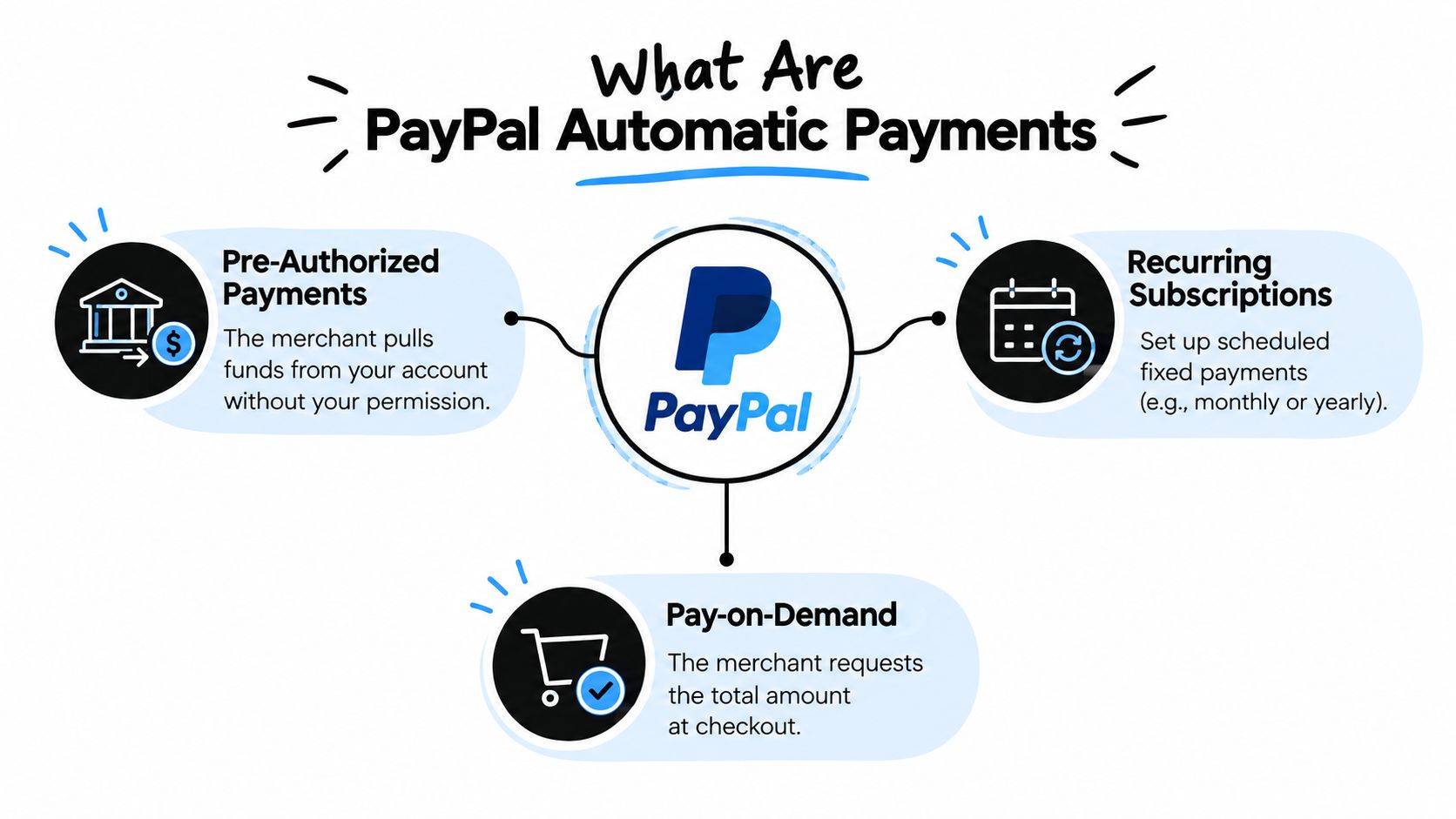
PayPal's merchant infrastructure supports recurring billing on daily, weekly, monthly, or annual schedules, so automatic payments are standard payment infrastructure for subscription businesses, not an unusual feature. The customer-facing labels can still vary, which is why a forgotten authorization may not appear under the exact word “subscription.”
Why payment methods don't control subscriptions
PayPal stores these arrangements as merchant-linked profiles. A profile connects a particular merchant relationship with permission to use an approved funding source. Changing or deleting a card doesn't automatically remove that relationship.
That structure explains a common mistake: users replace a card and assume the merchant has lost billing access. The merchant agreement may remain active, and PayPal may use another approved or backup funding source. Each merchant profile has to be reviewed on its own.
Practical rule: Treat the PayPal authorization, the merchant account, and the funding source as three separate controls.
PayPal also makes the terms of an agreement available after checkout. Save or review those details when you can, especially if you need to confirm the billing conditions, renewal arrangement, or merchant name before taking action.
How to Find Your Linked Merchants and Subscriptions
Start with an inventory, not a cancellation. Sign in to PayPal, open Settings, select Payments, and look for Subscriptions and saved businesses or Automatic payments, depending on the interface shown on your account. PayPal's guidance describes this area as the place to view merchants, change the funding source, and cancel an arrangement.
Open each merchant profile rather than relying only on the name in your statement. Record the merchant, current status, funding source, and any billing information PayPal displays. A merchant name can differ from the brand name you recognize, and PayPal groups agreements by merchant relationship, not by purpose such as entertainment, work, or household bills.
Build a useful audit
Use your PayPal activity and account statements alongside the automatic-payment list. Look for recurring descriptions, unfamiliar merchant names, and services you stopped using but never formally canceled. The profile list is the permission inventory, while the statement history shows whether money has continued to leave your account.
A simple worksheet can include:
- Merchant: Write the PayPal profile name and the brand you associate with it.
- Service: Note what the charge appears to pay for.
- Funding source: Record the card, bank account, or backup method shown.
- Action: Mark whether you need to cancel, change funding, or contact the merchant.
- Evidence: Save confirmation emails, screenshots, or support messages.
If you're cleaning up more than one account, this guide to finding all your subscriptions can help you compare PayPal entries with subscriptions billed through app stores, cards, and direct bank arrangements. For broader budgeting habits, you can also review this practical resource on how to save money on subscriptions.
PayPal's navigation can differ across web, app, and regional interfaces. If the labels don't match, search within the Payments settings for the merchant-linked automatic-payment area rather than assuming the agreement doesn't exist.
For a visual walkthrough, use the video below after you've reviewed the written path and gathered the merchant names.
Canceling, Modifying, and Pausing Payment Agreements
Once you know which merchant you're dealing with, choose the action that matches your goal. PayPal's highest-reliability workflow is straightforward:
- Sign in to PayPal.
- Open Settings.
- Select Payments.
- Choose Subscriptions and saved businesses or Automatic payments.
- Open the relevant merchant profile.
- Cancel the agreement or change the backup payment method.
The exact label may differ, but the principle is the same. You must open the individual merchant profile because the authorization belongs to that merchant, not to a general subscription category.
Cancel the PayPal authorization
Choose the cancellation option and save the confirmation. Take a screenshot or retain the confirmation message, particularly if the next billing date is close. If you later want the service again, PayPal's guidance says you'll need to set up the agreement again with the merchant.
This action stops or removes the PayPal-side permission. It doesn't automatically cancel the service contract, account, membership, or invoice relationship maintained by the merchant.
Contact the merchant separately through its account page or support channel. Ask for confirmation that the subscription itself is canceled and that no further invoices will be issued. If the merchant has a cancellation policy, follow that process and keep the resulting message.
Canceling PayPal prevents a payment route from remaining authorized. The merchant must still close the service relationship.
Change the funding source
If you want to keep the service, open the agreement and update its backup payment method instead of canceling it. This can help when a card is expiring, a household account is changing, or you want a particular service charged to a different account.
Changing the funding source isn't a pause. It preserves the merchant's billing relationship and may allow future charges to continue through the newly selected method.
Handle a pause carefully
A pause, when the merchant offers one, usually belongs to the merchant's subscription system rather than PayPal's authorization controls. Ask the merchant whether billing, access, or both will pause, and ask when charges will resume.
Don't assume that removing PayPal from the payment method creates a clean pause. If you need a complete cancellation, use the merchant's cancellation process and the PayPal-side cancellation together. This subscription cancellation guide can help you keep the two actions separate and document each one.
If there's no cancel button, contact the merchant first, then review the PayPal profile again. If a charge has already posted, cancellation usually addresses future billing rather than automatically creating a refund. A refund or dispute requires a separate conversation with the merchant or the relevant payment-resolution channel.
Why Cancellation Is Tricky Retry Logic and Backup Funding
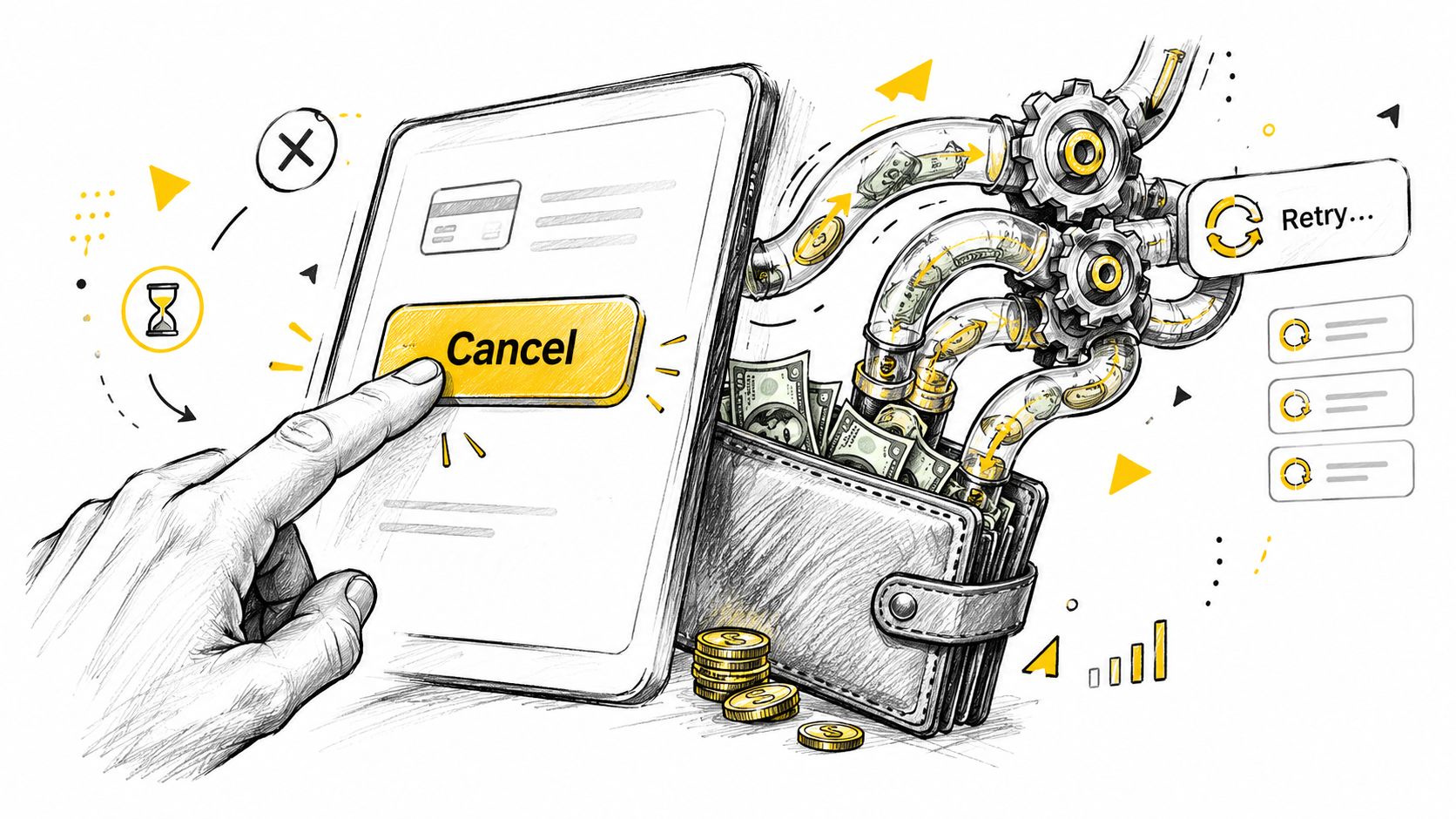
The most misleading outcome is a subscription that appears inactive but isn't fully canceled. A failed payment may trigger another attempt through PayPal's recurring-payment infrastructure. PayPal explains that recurring charges can be retried automatically, and if multiple retries fail, the subscription is suspended rather than necessarily canceled, as described in its recurring payments information.
Suspension and cancellation have different consequences. A suspended service may stop working while the merchant still retains a billing relationship or expects the customer to update payment details. A canceled agreement represents a deliberate end to that authorization, but it still doesn't replace the merchant-side cancellation step.
The fallback-funding problem
PayPal lets users change the backup payment method on an automatic payment. That flexibility is useful for legitimate billing, but it creates exposure when someone believes changing or removing a card has ended the subscription.
The merchant-linked authorization remains the key object to check. Review the profile, identify the active funding arrangement, and then compare the result with your statement history. A recurring transaction may continue to appear in statements after the payment instrument changes if the merchant relationship was never canceled.
| What you do | What it controls | What it doesn't guarantee |
|---|---|---|
| Change the card | The funding source used for the agreement | That the subscription itself is canceled |
| Remove PayPal as a method | PayPal's ability to fund the merchant through that route | That the merchant stops invoicing |
| Cancel the PayPal agreement | The PayPal-side authorization | A refund for a charge already processed |
| Contact the merchant | The service and invoice relationship | That PayPal's authorization is removed |
This is why timing and evidence matter. If a payment is already being retried or has posted, don't treat a failed attempt as proof that the agreement is gone. Check the PayPal profile, contact the merchant, and watch the statement for the result.
Protecting Your Finances Manual Checks and Automation Tools
Manual review remains the most transparent option. You can inspect PayPal, bank statements, card activity, email receipts, and calendar reminders yourself, then maintain a spreadsheet containing merchant names, renewal details, funding sources, and cancellation evidence. The trade-off is attention. You have to remember to perform the review, recognize unfamiliar billing descriptors, and connect a charge with the service that created it.
A spreadsheet also works best when you update it immediately after starting, changing, or canceling a subscription. Otherwise, it becomes another incomplete list that misses services billed outside PayPal.
Manual and automated oversight
| Approach | Strength | Limitation |
|---|---|---|
| PayPal settings review | Shows merchant-linked payment permissions | Doesn't cover every subscription billed elsewhere |
| Statement audit | Confirms what actually left the account | Requires repeated checking and interpretation |
| Email search | Finds receipts, renewals, and cancellation messages | Can miss charges sent to another address |
| Calendar reminders | Helps you remember renewal or trial dates | Only works when you create and maintain them |
| Automated monitoring | Can surface recurring, duplicate, or changed charges | Requires carefully chosen account connections |
Automated monitoring is useful when you have several payment channels or rarely inspect statements. A service that analyzes read-only transaction data can flag recurring charges, duplicates, and bills that have increased, while email and calendar connections can add context about renewals and promised refunds.
Privacy and scope deserve equal attention. Use tools that explain what each connection can access, prefer read-only financial access where available, and revoke individual connections you no longer need. If you want to investigate recurring charges or other spending leaks, the money leak finder offers a focused starting point.
The best setup often combines both methods. Use PayPal's own settings for authoritative cancellation, then use statements or monitoring alerts to verify that the expected change occurred.
Final Security Checklist and Best Practices
Before you consider an automatic payment resolved, confirm all of the following:
- PayPal profile: The merchant agreement is canceled or the funding source is intentionally updated.
- Merchant account: The service provider confirms cancellation, pause, or plan change.
- Statement history: No later recurring charge appears under a different merchant descriptor.
- Backup funding: You know which card or bank account could be used if the agreement remains active.
- Records: You've saved the cancellation confirmation and relevant support messages.
- Alerts: PayPal, bank, and merchant notifications are enabled where useful.
Review linked merchants periodically, especially after replacing a card or closing a service. True cancellation requires both sides to be checked, because removing PayPal's authorization alone may not stop merchant invoices or account obligations.
Compass+ monitors connected financial, email, calendar, and shopping accounts to surface recurring charges, duplicate transactions, renewal risks, and other specific opportunities to reduce spending or recover money. Visit Compass+ to join the waitlist and turn subscription cleanup into an ongoing, actionable review instead of a once-a-year search through statements.