How to See Amazon Subscriptions and Stop Unwanted Renewals
How to See Amazon Subscriptions: check memberships, Subscribe & Save deliveries and renewal dates, then cancel before the next charge ships.
14 min read
A renewal you didn't plan for rarely announces itself. It arrives as a card charge you have to squint at, or a box on the doorstep with your name on it that you don't remember ordering.
Amazon makes that harder to catch than expected, because it doesn't keep every recurring commitment in one place. Memberships and digital services live on one page. Subscribe & Save product deliveries live on another. Check one and call it done, and a monthly coffee-pod shipment keeps arriving long after you've cancelled everything you thought you had.
This guide walks the full audit: the membership list, the delivery schedule, and the statement comparison that catches what both lists miss. Every step ties the menu path to the deadline that makes it matter, because seeing a subscription and stopping its next charge are two different jobs.
Table of Contents
- Where Amazon Keeps Each Kind of Subscription
- How to Open Your Memberships and Subscriptions
- How to Review Subscribe & Save Deliveries
- Cancel Before the Last Day to Update an Order
- Why Recurring Charges Slip Past Your Budget
- Set a Monthly Renewal Check Before Your Next Cutoff
Where Amazon Keeps Each Kind of Subscription
The short answer: open Your Memberships and Subscriptions for Prime, Kindle, Audible and other paid memberships, then open Manage Your Subscriptions (also labelled Your Subscribe & Save items) for physical product deliveries. Amazon treats those as separate systems, so a complete check means visiting both.
Amazon's help page for Your Memberships and Subscriptions describes the central page as a list of active, canceled and expired subscriptions, each showing a renewal date and price, and it explicitly distinguishes those memberships from Subscribe & Save product deliveries (Amazon customer service). That distinction is the whole reason a single-page check fails.
| Subscription type | Where to find it | What the entry shows |
|---|---|---|
| Prime, Kindle, Audible and other memberships | Your Memberships and Subscriptions | Active, canceled or expired status, renewal date and price |
| Subscribe & Save deliveries | Manage Your Subscriptions or Your Subscribe & Save items | Next delivery date, frequency, quantity and payment method |
| Digital subscriptions with auto-renew | Manage Subscription on the membership entry | Auto-renew setting for eligible items |
| Free trials and paused plans | Your Memberships and Subscriptions | Trial status and the date it can convert to a charge |
| Recurring card or bank charges | Bank or card transaction history | Charges that may come from Amazon under a different descriptor |
The split bites in both directions. A shopper who only checks memberships can miss a monthly household-product order that keeps shipping. A shopper who only reviews deliveries can miss a Kindle or Audible plan renewing in the background.
There's a third trap. Free trials and paused plans show up in the membership list, but they can be invisible on a bank statement until the trial converts, and some charges post under a descriptor you won't recognize at a glance. Statements are a cross-check, never the starting point.
Practical rule: audit the membership list, then the delivery schedule, then the statement. Skipping to the statement means auditing your memory, not your account.
If you want a wider inventory across every merchant, not just Amazon, this walkthrough of how to find all your subscriptions covers the broader sweep. Inside Amazon, though, the two-page check below is the one that holds up.
How to Open Your Memberships and Subscriptions
The membership list belongs to the account that pays for the subscriptions, so sign in there first. A second household account shows a different set of entries, and auditing the wrong one leaves the actual charges untouched.
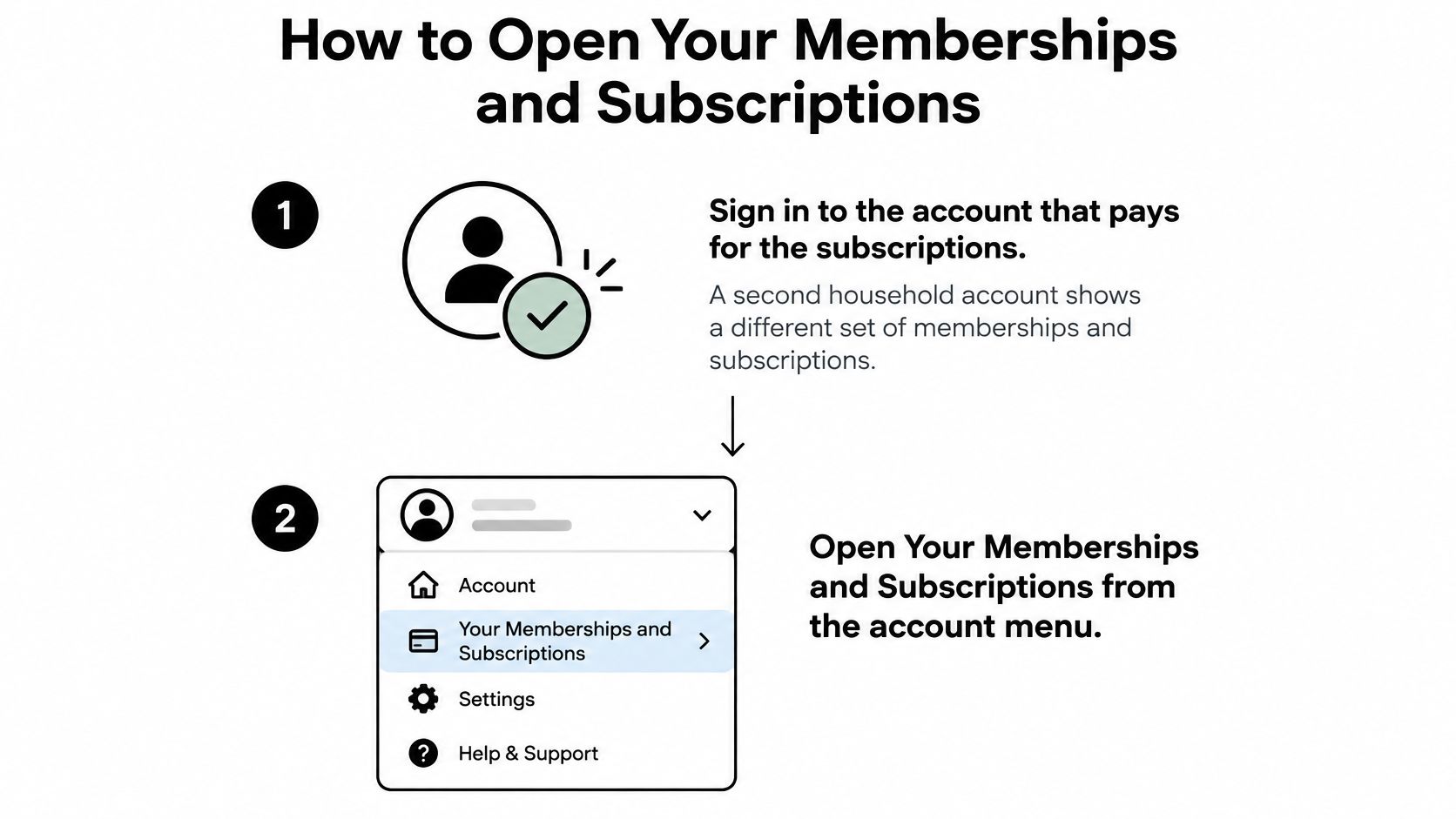
- Sign in to the paying account. Households often have two, and the subscription list follows whichever one made the purchase.
- Open Your Memberships and Subscriptions and read every entry, including canceled and expired ones. Those rows show what you already stopped and confirm nothing has restarted since.
- Write down the renewal date and the price for each active entry. For annual plans, divide by twelve so every number sits in the same monthly unit as your budget.
- Select Manage Subscription to see the controls. Depending on the item, you'll find the saved payment method, shipping details for physical subscriptions, and an auto-renew toggle for eligible digital subscriptions.
- To end an entry, choose Advanced Controls, then Cancel Subscription. This is the documented route, and it's worth using even when a card issuer offers to block the merchant, because only Amazon can close the subscription itself.
- Flag any free trial and note its conversion date. A trial sits on this page before it becomes a charge, which makes this the earliest point to act.
Amazon's documentation for managing Your Memberships and Subscriptions sets out exactly those controls: the subscription list, the payment and shipping details, the auto-renew setting for eligible items, and the Advanced Controls path to cancellation. It's a more reliable audit than scrolling a bank app, because it exposes trials, paused plans and charges that post under a different descriptor.
Turn the List Into Deadlines
A list of subscriptions is a list of dates waiting to happen. Convert it: every renewal falling in the next 60 days, with the amount beside it. Anything on that list you don't want will renew unseen unless you act before its date. I'd put the whole thing in a single note you'll reopen, not a spreadsheet you'll forget.
How to Review Subscribe & Save Deliveries
Two boxes of dishwasher tablets, a case of protein bars and a six-pack of toothpaste can land in the same week without any of them being a decision you made this month. That's the pattern Subscribe & Save creates, and the delivery schedule is where you break it.
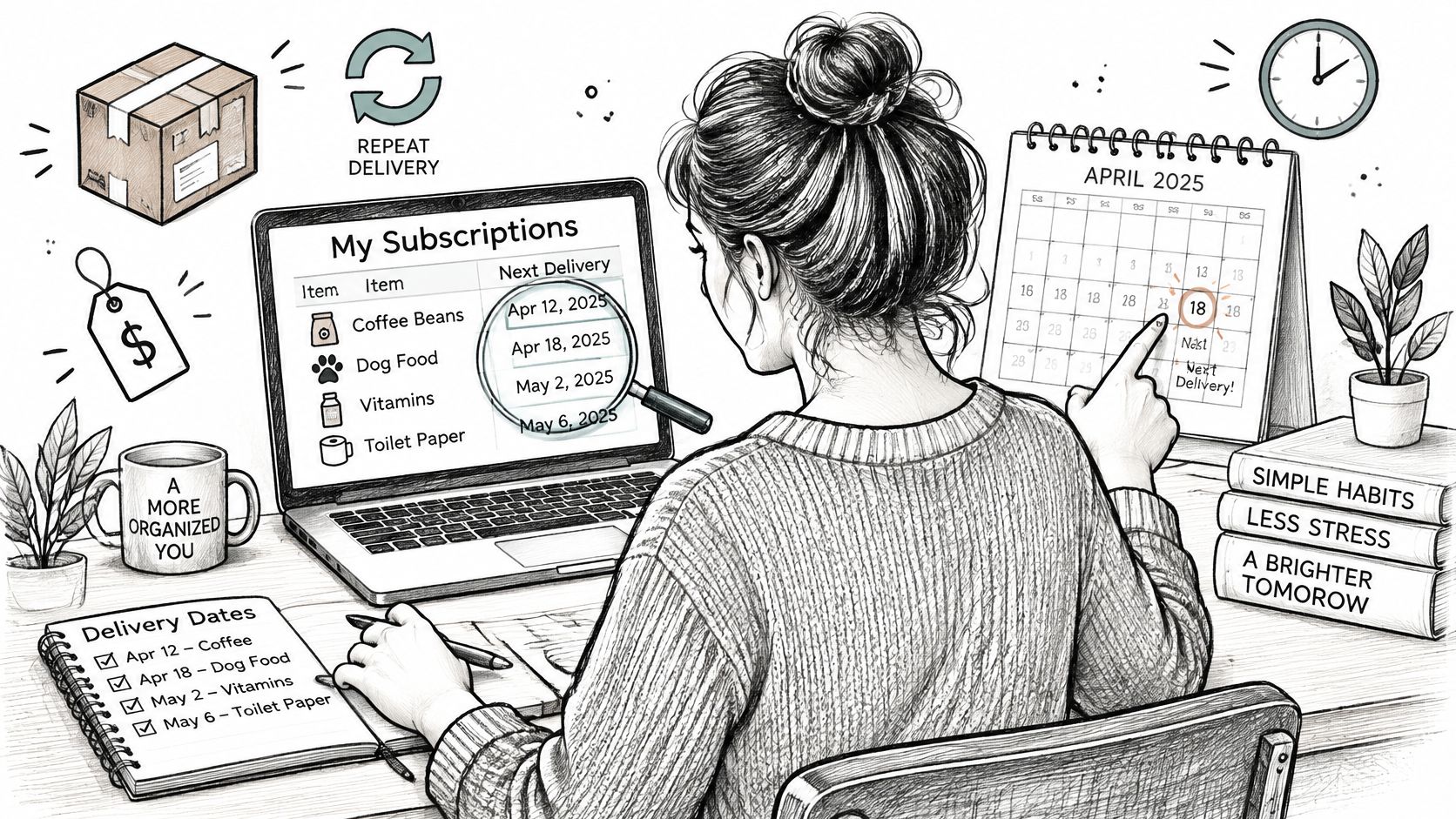
Start in Manage Your Subscriptions or Your Subscribe & Save items in the account area, then work through the Deliveries and Subscriptions entries one at a time.
Four Levers on Every Subscribe & Save Item
- Quantity. Dial it down before you dial it off. A household that uses the product but drowns in it needs a smaller pack, not a cancellation.
- Delivery frequency. Every one, two or three months changes the annual cost far more than expected. It's the cheapest fix on the page.
- Next delivery date. Push it out when the cupboard is full. That buys time without ending the enrollment.
- Payment method. If the card on file has expired or changed, fix it here rather than discovering the problem through a failed delivery email.
Select any item to reach those controls, plus Skip the next delivery and the cancel option. Then compare each next-delivery date and price against what the household consumes. Overstocked products are the first skip candidates.
Skip and Cancel Do Different Jobs
Skipping pauses one delivery. The subscription keeps running, and the following shipment arrives on schedule. Cancelling ends the recurring enrollment entirely.
That difference matters because it's easy to skip a delivery, feel finished, and then get billed again two months later. Amazon's own guidance on reviewing and changing Subscribe & Save items covers quantity, frequency, next delivery date, payment method, skipping and cancelling, and it warns that changing a delivery schedule is not the same as cancelling the enrollment.
Read the final confirmation screen and then check that the item has dropped out of your upcoming deliveries. The screen is the receipt. The schedule is the proof.
Pick the two items you have the most stock of right now and decide, for each one, whether it's a skip or a cancel. Do it before the next delivery date, not after.
Cancel Before the Last Day to Update an Order
Finding the subscription and clicking cancel feels like the job is done. The cutoff date decides whether it was. Amazon accepts changes to a Subscribe & Save order only up to the last day to update shown on that item. Once the order moves into processing and shipping, cancellation may no longer be offered, and the options that remain are a return or a shipment stop.
Four Checks Before the Cutoff
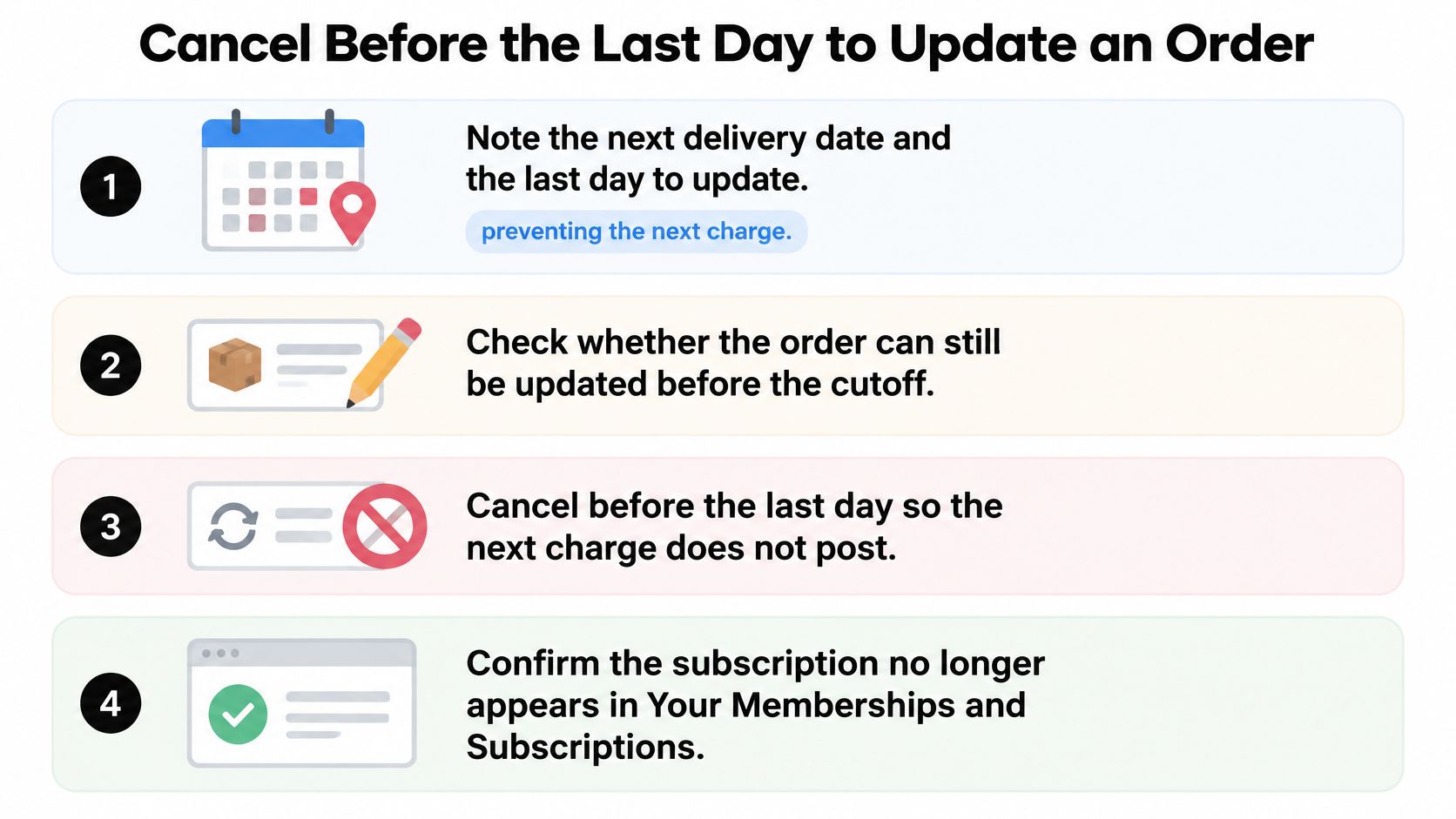
- Note the next delivery date and the last day to update it. Both dates appear on the item, and only the second one decides whether you can still change anything.
- Confirm the order is still editable. If the item shows as processing or shipped, the window has closed.
- Cancel or skip before that date. A monthly household order whose last day to update falls on the 14th still ships if you cancel on the 15th.
- Verify the result. The item should disappear from upcoming deliveries, and a confirmation email should land. If either is missing, chase it that day.
Memberships and digital plans run the same logic on the renewal date instead of a shipping cutoff. The path through the menus differs, the timing discipline doesn't.
| Item type | Cancel path | Stops the next charge when | Confirm by |
|---|---|---|---|
| Membership or digital subscription | Manage Subscription, then Advanced Controls and Cancel Subscription | Cancelled before the renewal date | Status shows canceled in the membership list |
| Subscribe & Save item | Select the item, then skip the next delivery or cancel | Done before the last day to update the order | Item gone from upcoming deliveries and confirmation email received |
| Shipment already in progress | Request a return or shipment stop through Amazon customer service | Cancellation may be unavailable once shipping begins | Written return or stop request confirmation |
| Charge you cannot match to Amazon | Check bank transaction details and Amazon order history | Amazon cancellation does not apply if another merchant bills you | Merchant named on the statement and matching end date |
A cancelled item that still appears in the schedule calls for action that day, not patience until the next cycle.
Freelancers carry a harder version of this, with client tools and personal boxes running on the same cards. These subscription cleanup tips for freelancers are worth reading for the workflow around the deadlines. And when a free trial is the thing about to convert, how to avoid free trial charges covers the timing in detail.
Why Recurring Charges Slip Past Your Budget
The cost of skipping this audit isn't hypothetical. In a U.S. survey of 2,440 adults, respondents estimated their monthly subscription spending at $86 on average. Their actual spending averaged $219, an underestimation of $133 a month and more than 2.5 times the guessed figure (CNET subscription survey).
| Measure | Figure | What it means |
|---|---|---|
| Annual subscription spending | nearly $1,100 | Average yearly total per consumer |
| Spent on rarely or never-used services | about $200 | Money going to services people barely use each year |
| Guessed monthly subscription spending | $86 | What respondents estimated on average |
| Actual monthly subscription spending | $219 | Average actual spend, $133 more than guessed |
| Say recurring charges are easy to forget | 74% | Share of respondents who find them easy to forget |
| Have all subscription payments on autopay | 72% | Share who rely on autopay for every subscription |
| Kept paying after stopping use | 42% | Share who forgot to cancel a service they no longer used |
A recurring charge doesn't feel like spending, which is why the gap opens so wide. Nobody decides to buy a subscription they've stopped using. It just doesn't get cancelled.
Compare the Lists With Three Months of Statements
Take the renewal dates and prices you wrote down from both Amazon pages, then search your last three statements for Amazon and AMZN. Flag two kinds of charge: ones with no matching entry in either Amazon list, and ones where the amount is higher than the price Amazon showed you.
The first flag usually means a second account, a different merchant, or a subscription you cancelled that never stopped. The second flag usually means a promotional rate ended without an email you noticed.
A note on timing: renewals that bunch into the same week are how a comfortable month turns into an overdraft. Spreading dates is part of the fix, and avoiding overdrafts through bill timing walks through the sequencing.
Two habits keep this honest. Set a calendar reminder about seven days before each renewal date, which leaves room to act before a cutoff. And keep one running list of active subscriptions with their monthly cost, updated whenever you add or cut something.
Households buying supplements on subscription feel this fastest, because the product arrives whether or not anyone is taking it. These budget tips for supplement subscribers get straight to that usage question.
This week, total the monthly cost of everything you flagged. Then decide, item by item, which ones you're keeping.
Set a Monthly Renewal Check Before Your Next Cutoff
Three checks, once a month, in the same order every time: open the membership list, review the Subscribe & Save delivery schedule, then compare both with the last month of statements. Fifteen minutes, and the gap between what you think you spend and what leaves your account closes.
The rule that holds it together is one line. Every item needs its renewal date or last day to update written down, and any change happens before that date. No date, no control.
The Next Action
List every renewal and delivery date falling in the next 60 days. Mark the ones you don't want to keep. Then cancel those inside Amazon before their cutoff, whether that's a renewal date for a membership or the last day to update for a shipment. Do it in the same sitting, while the dates are in front of you.
Deadline to remember: a cancellation made after the last day to update still leaves you receiving, and paying for, one more shipment.
If rebuilding that list by hand every month sounds like the chore it is, Compass+ runs a free private audit that estimates subscriptions, duplicate charges, missing refunds, fees, renewals and bill increases worth investigating. Connect a bank account and you can see what it found for 7 days without paying.
What it doesn't do is cancel anything for you. The cancel still happens inside Amazon, before the cutoff date. What changes is that you start the month already knowing where the deadlines are.
Compass+ pulls your recurring charges into one view so the items worth cutting show up before their renewal dates instead of after. It reads the bank and card accounts you connect to find subscriptions, duplicates and charges that have crept up, then tells you what each one costs you per month. Visit Compass+, start the free audit, and take the items you decide to drop back to Amazon before their cutoff dates.