How to Cancel Subscription on Android Step by Step
Learn how to cancel subscription on Android through Google Play, stop the next renewal and confirm billing ended. Covers refunds and trials.
14 min read
You've spotted a subscription charge for an app you barely use, opened your Android phone, and found no obvious cancel button. Maybe you've already deleted the app and assumed the payments would stop. Before trying anything else, identify who bills you.
To cancel a subscription on Android, you need the billing account, not necessarily the app. Keep three jobs separate: stop renewal, request a refund, and dispute an unauthorized charge. Each needs different evidence, and completing one doesn't automatically complete the others.
Table of Contents
- Which Cancellation Route Fits Your Subscription
- How to Cancel a Google Play Subscription and Confirm It
- Why Uninstalling the App Does Not Stop Billing
- What You Keep and What You Can Get Back
- Fixing Missing Subscriptions and Trial Charges
- What to Do About an Unauthorized Charge
Which Cancellation Route Fits Your Subscription
The merchant descriptor on your statement is the first clue. A charge labelled "GOOGLE *" plus an app name cancels in the Play Store, while the same service bought on the company's website cancels in that site's account page. One Android app can bill through Google Play, a company website, a mobile carrier, or another app store, and looking in the wrong account won't stop the charge.
Check three records before you change anything: the receipt email, the merchant description on your bank or card statement, and the billing page inside the app. Match the seller across all three. The app's brand name and the company collecting payment aren't always identical.
Where to cancel by billing source
| Billing source | Where to cancel | How to recognise it |
|---|---|---|
| Google Play billing | Play Store, Payments & subscriptions | Receipt names Google Play or Google as the seller |
| Company website account | The company's account page on its website | Receipt comes from the company, not from Google |
| Carrier billing | Mobile carrier account or carrier app | Charge appears on the phone bill |
| Another Android app store | That store's subscription page | Receipt names the store, such as Samsung Galaxy Store or Amazon Appstore |
| Unknown billing source | Check the receipt email first | Search for the merchant descriptor, service name, and renewal confirmation |
A plan purchased on a company website usually belongs to that website's account system, even if you use the service entirely on your phone. For a phone-bill charge, inspect the carrier's subscription details to identify who manages the plan before requesting cancellation.
If your inbox contains several plans, use our guide to finding all your subscriptions to build a complete list before cancelling anything.
Practical rule: Write down the seller, account email, and next renewal date before choosing a cancellation route. Those details drive all three follow-up actions: stopping renewal, requesting a refund, and disputing a charge you never authorised. Each action uses the seller's own channel and carries its own deadline.
Deciding whether a plan is still worth paying for is a separate question from where to cancel it. For a learning plan, TrueFire's explanation of why guitarists pick a student plan addresses the first question; your receipt settles the second.
Compass+ shows the merchant's own cancellation route for each charge it identifies, and you complete the cancellation. The app is read-only: it cannot move money, make payments, or cancel a subscription with a merchant.
How to Cancel a Google Play Subscription and Confirm It
For a Google Play purchase, cancel before the renewal date rather than waiting until you stop using the service. Google's subscription cancellation instructions describe cancellation as stopping renewal while normally preserving the already-paid period; eligible pauses begin after the current period and may last one week to three months, depending on the app.
Use this process overview to orient yourself before opening the subscription record.
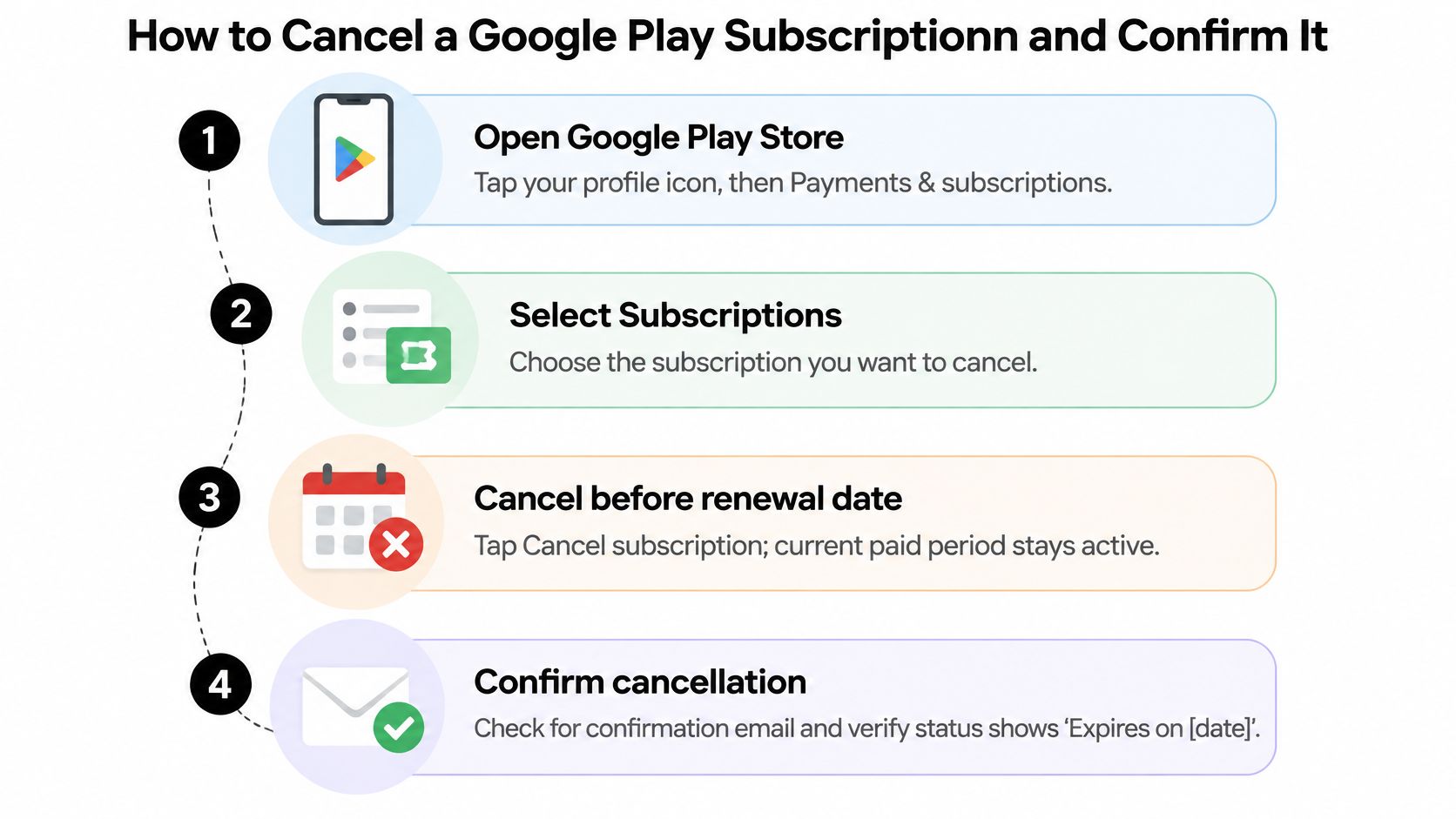
Follow the cancellation through to confirmation
Open Google Play Store. Tap your profile icon. Check the account email shown there, especially if you use separate personal and work accounts.
Choose Payments & subscriptions, then Subscriptions. This is the billing list you need, not the list of installed apps or your purchase history.
If the subscription is missing, switch Google Accounts. Return to the profile menu and inspect each relevant account's subscription list. An empty list only tells you about the account currently selected.
Select the app or service you want to cancel. Read its next payment date and plan details before proceeding. Make sure you haven't selected a different subscription with a similar name.
Decide whether a pause really fits. If Play offers Pause payments, use it only when you want the subscription to resume later. A pause isn't a permanent cancellation, so don't choose it merely because it appears before the cancel option.
Tap Cancel subscription, choose a reason if prompted, and finish the confirmation instructions. Don't stop at a feedback question, discount offer, or screen asking whether you're sure.
Save a dated screenshot of the confirmation. Include the service name, account information where visible, and the displayed end date. Keep any confirmation email alongside the receipt.
Reopen the subscription record. Verify that it shows a cancelled status or a future expiration date, rather than another scheduled renewal. Add a calendar reminder before that date so you can check the record while the evidence is easy to find.
Check the payment account after the former renewal date. If a new charge posts, match it to the receipt and order ID before requesting a refund. A similar amount from another subscription shouldn't be mistaken for a failed cancellation.
The final check matters more than whether you remember tapping the button. If you reach the same active-renewal screen afterward, don't assume the request succeeded. Save what you see and resolve the status before closing the task.
Decide what deserves to stay
I'd cancel an unused or duplicated plan today rather than keep it for an undefined future need. Keep a subscription when you can name what you use it for and would notice losing it during your normal routine. A discounted renewal still costs money if you won't use the service.
For our Android subscription, billing is managed through Google Play. Our Profile → Subscription screen takes you to the store's subscription settings; Apple or Google handles store billing through your account under that store's terms.
If you prefer a visual walkthrough, use the video while checking the labels on your own phone.
Your action today: Open Subscriptions and read every active renewal date. Don't limit the review to the charge that first caught your attention.
Why Uninstalling the App Does Not Stop Billing
Uninstalling an app doesn't cancel its subscription. Google's official subscription help explicitly separates removing an app from cancelling the billing agreement associated with your Google Account.
Say you remove a fitness app after deciding its workouts aren't useful. When its next renewal arrives, the charge still posts because you never cancelled the plan in Google Play. The software is gone from your phone, but the subscription record hasn't changed.
The illustration captures the mistake: removing the app leaves the payment arrangement untouched.
Check the billing record instead
- Find the service in Play Subscriptions. Use the Google Account that purchased it, not the account you currently use for email.
- Read the status and expiration date. A subscription appearing in the list doesn't, by itself, tell you whether it will renew.
- Compare the statement afterward. Match the seller and transaction date against your saved cancellation evidence.
Clearing app storage, removing its home-screen icon, or turning off notifications doesn't change the billing agreement either. Those actions affect your phone, not the seller's renewal instructions.
On a shared device, another person's Google Account can also hold the purchase. Reinstalling the app may help you reach its account page, but it isn't a substitute for checking the billing account.
The app icon isn't proof that payments have stopped. The subscription status is the record to check.
Keep your confirmation outside the app, such as in a receipts folder, so you can still access it after uninstalling.
What You Keep and What You Can Get Back
A successful cancellation doesn't reverse a completed charge. Stopping renewal changes future billing; retaining access means you can use the period already purchased; getting money back requires a separate refund decision.
Google's refund policy says purchases within 48 hours may qualify depending on transaction details, while afterward the developer generally handles purchase issues; it also describes a 14-day withdrawal framework for digital content in the UK and EEA, subject to applicable conditions.
Refund outcomes by timing and region
| Situation | What usually happens | What to do |
|---|---|---|
| Cancelled before next renewal | No next renewal charge; access continues through the paid period | Save the cancellation confirmation |
| Purchase falls within Google's initial refund-request window | A refund may be available based on transaction details | Cancel first, then request a refund through Google Play |
| Purchase falls outside that initial window | The developer generally handles the issue under its policy and applicable law | Contact the developer with the order ID |
| UK or EEA, within the withdrawal framework | Withdrawal rights may apply, subject to digital-content conditions | Submit the request promptly and check eligibility |
| UK or EEA, after the withdrawal period | Refunds generally require a defect, unavailability, or failure to perform | Document the problem before requesting |
The timing windows aren't blanket money-back guarantees. Explain what happened: an accidental purchase, unavailable service, or another specific issue. A cancellation confirmation proves that renewal was stopped, not that the original payment was refundable.
For a child's app, review what the account holder accepted before describing a renewal as unauthorized. The terms parents agree to before download from Talkio Kids are an example of the service terms to inspect alongside the store receipt, not a replacement for the store's refund rules.
Keep an audit trail
- Record the order ID and purchase details before submitting anything.
- Cancel renewal and save confirmation so the refund conversation doesn't leave future billing unresolved.
- Submit the refund request separately, explaining the reason and attaching relevant evidence.
- Reconcile the payment method after approval. The refund may not appear immediately because processing depends on the payment method and financial institution.
Our Google Play refund guide can help you prepare that separate request. If it's refused, contact the developer with the order ID, cancellation confirmation, and evidence supporting your claim.
There's also a payment-plan exception: Google's subscription cancellation guidance explains that stopping renewal doesn't remove remaining payments on an existing payment plan. Check whether an amount is an installment already owed before treating it as a new renewal.
Fixing Missing Subscriptions and Trial Charges
A free trial that has already converted needs a different response from one that's still running. Cancel a trial before conversion to avoid the first paid charge; once it converts, cancel the paid subscription and assess the posted payment separately for refund eligibility.
Google's subscription reporting documentation counts trial cancellations as cancellation events and distinguishes voluntary cancellations from involuntary expirations caused by payment problems. That distinction helps explain why a service can disappear without you ever pressing Cancel.
Symptoms, causes and fixes for Play subscriptions
| Symptom | Likely cause | Fix |
|---|---|---|
| Subscription missing from Play | Bought on a different Google Account | Switch accounts and check each one on the device |
| Charged after a free trial | Trial converted before you cancelled | Cancel the paid plan now; for future trials, cancel before the end date, then request a refund if eligible |
| Still charged after cancelling | Existing-period charge, renewal already processed, or cancellation not completed | Compare the receipt, renewal date, and saved confirmation before requesting a refund |
| Service ended without cancelling | Payment failed, such as an expired card | Check whether the subscription is recoverable or expired; update payment details if recovery is offered |
On a family phone with separate Google Accounts, the person using the app may not be the person whose account purchased the plan. Inspect each account in turn rather than repeatedly refreshing the same empty list. If none contains the purchase, return to the receipt and identify the billing provider.
Don't use an expired card as a cancellation strategy. A payment problem isn't the same as an intentional cancellation, and a temporarily interrupted subscription isn't necessarily fully expired. Read the displayed status before deciding whether to update payment details or subscribe again.
Trial safeguard: Save the conversion date when you sign up, not when the reminder email arrives.
Our guide to avoiding free-trial charges helps you organize trial dates and cancellation checks before a paid renewal becomes the issue.
Stop troubleshooting when the evidence is clear
Contact Google Play support when a Google receipt exists but the purchase can't be located or the cancellation status conflicts with your confirmation. Contact the developer for service-access problems or purchases billed directly by the company.
Send the account email, service name, order ID, relevant dates, and screenshots. Explain the exact mismatch, such as a confirmed cancellation followed by a new renewal receipt, rather than sending only a bank screenshot with no purchase details.
What to Do About an Unauthorized Charge
A forgotten renewal is a subscription you approved but didn't remember to cancel. An unauthorized charge is a purchase you didn't make or approve. Check household purchases and receipts before choosing which issue to report.
Don't describe an unwanted but authorized renewal as fraud to pursue a refund. Give the seller or payment issuer an accurate account of what happened.
Preserve evidence and report the right problem
Stop future renewal through the billing route, if you can safely access the subscription, and save the confirmation. If the purchase isn't in an account you control, report it rather than attempting to access someone else's account.
Record the statement date, amount, merchant descriptor, and order ID from the receipt or Play order history. Keep the original messages and screenshots together.
Contact the billing provider. If the receipt names Google, report the purchase through Google Play. If it names the company, contact that company and ask it to investigate and reverse the unauthorized payment.
Contact your bank or card issuer promptly if the seller can't be identified, the request is refused, or you suspect payment-account misuse. Ask about the applicable dispute deadline and submit the statement line, receipt or order ID if available, correspondence, and cancellation evidence.
An issuer's dispute process is separate from a merchant refund request. Follow its instructions and keep any case reference so you can respond to requests for further evidence.
Don't delete the app or account until you've saved the statement details and confirmation. Preserve the records first, then remove software you no longer need.
Compass+ helps identify recurring charges, low-use subscriptions, and renewal dates across connected accounts, then pairs findings with concrete next steps. Visit Compass+ to explore its savings guidance and join the standalone experience's waitlist; you stay in control of cancellations and refund requests.